Payments
Record payments and manage open items
An invoice is only done when the money has arrived. Billance keeps receivables and payables apart: incoming payments on your invoices, open items from your supplier invoices, each with partial payments, discounts and due dates.
At a glance
- Directions
- Receivables and payables
- Payments
- Full, partial, with discount
- Payment methods
- Transfer, direct debit, cheque, online
- Available on
- Desktop app and mobile app
Receivables and payables in one application
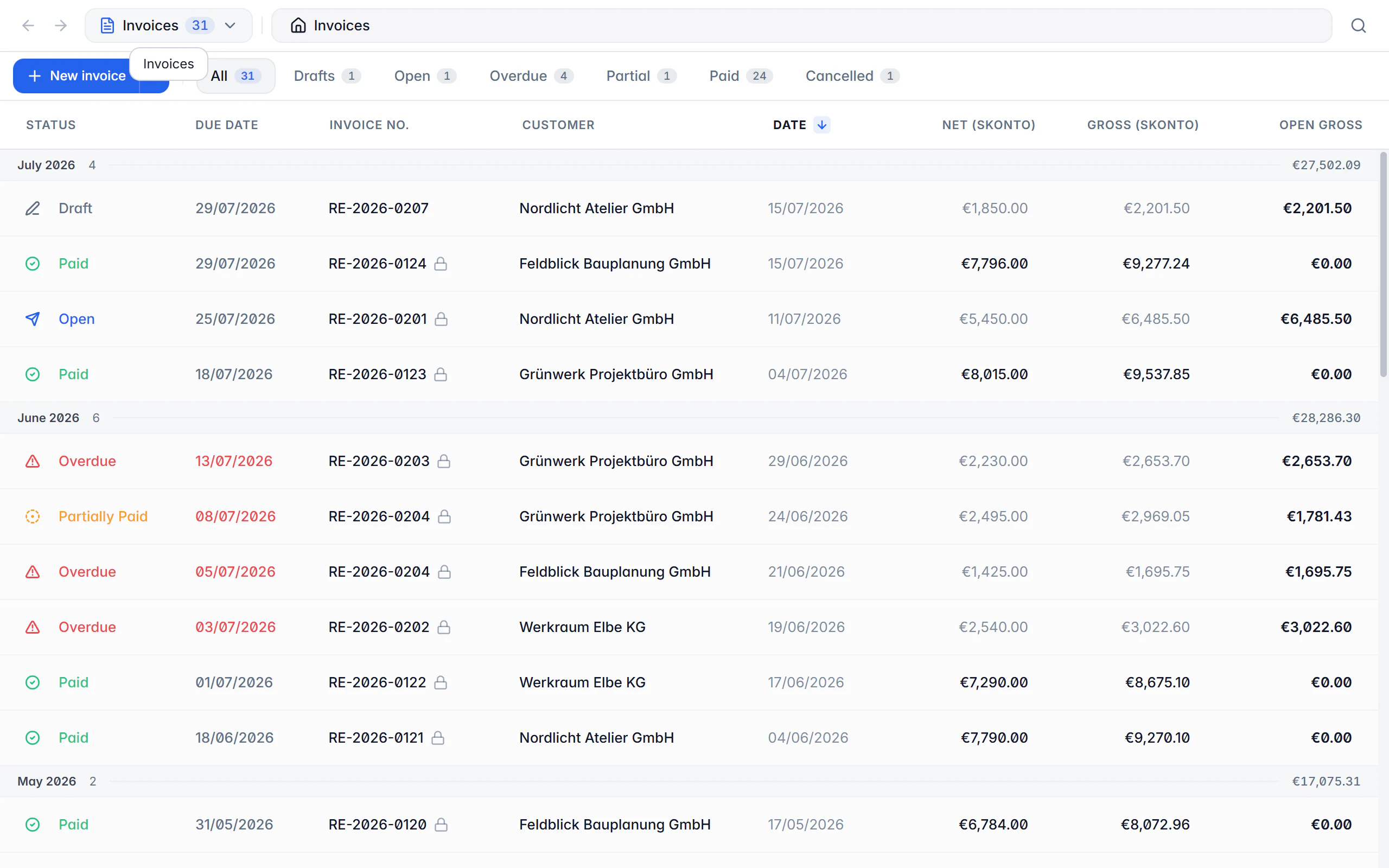
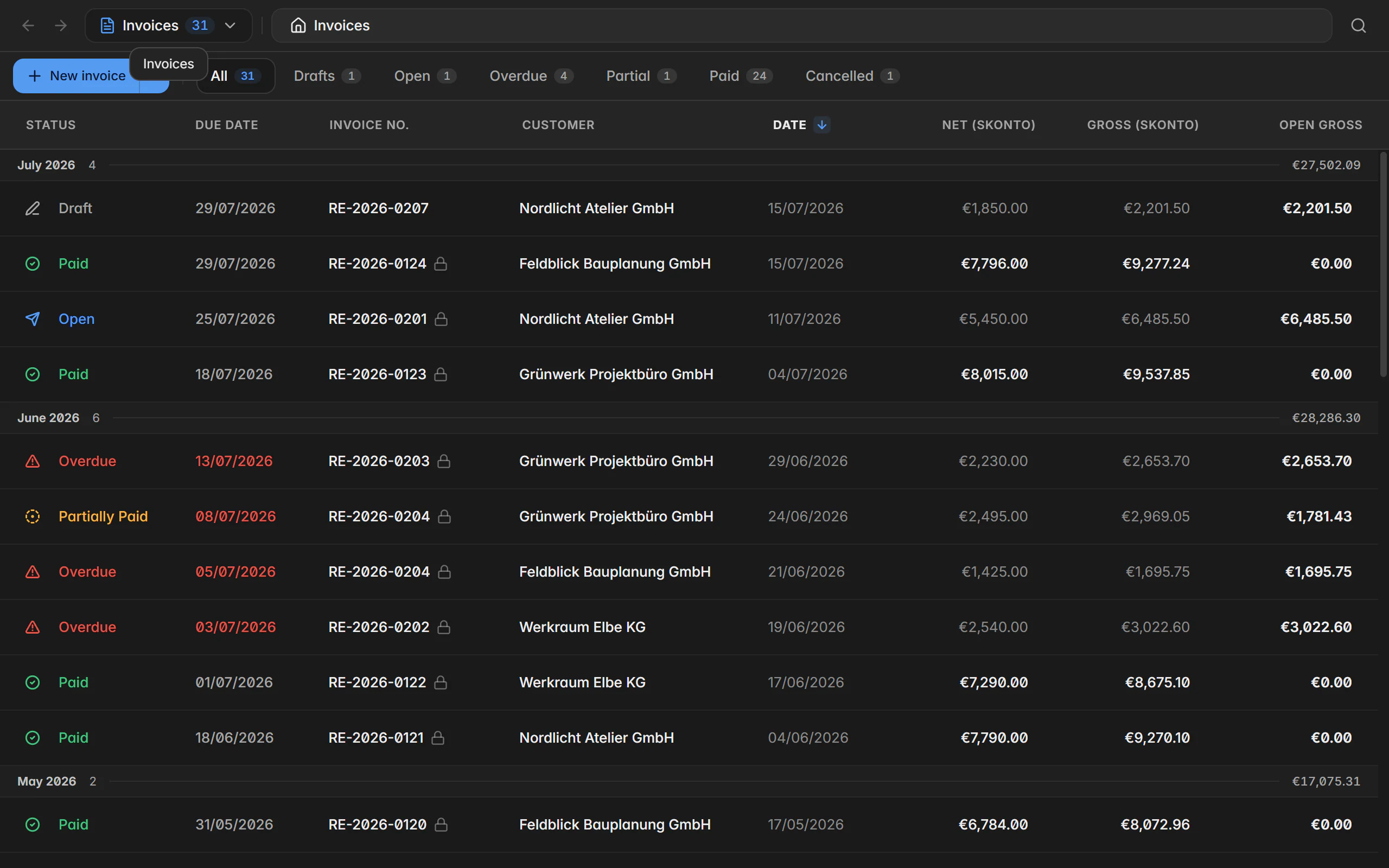
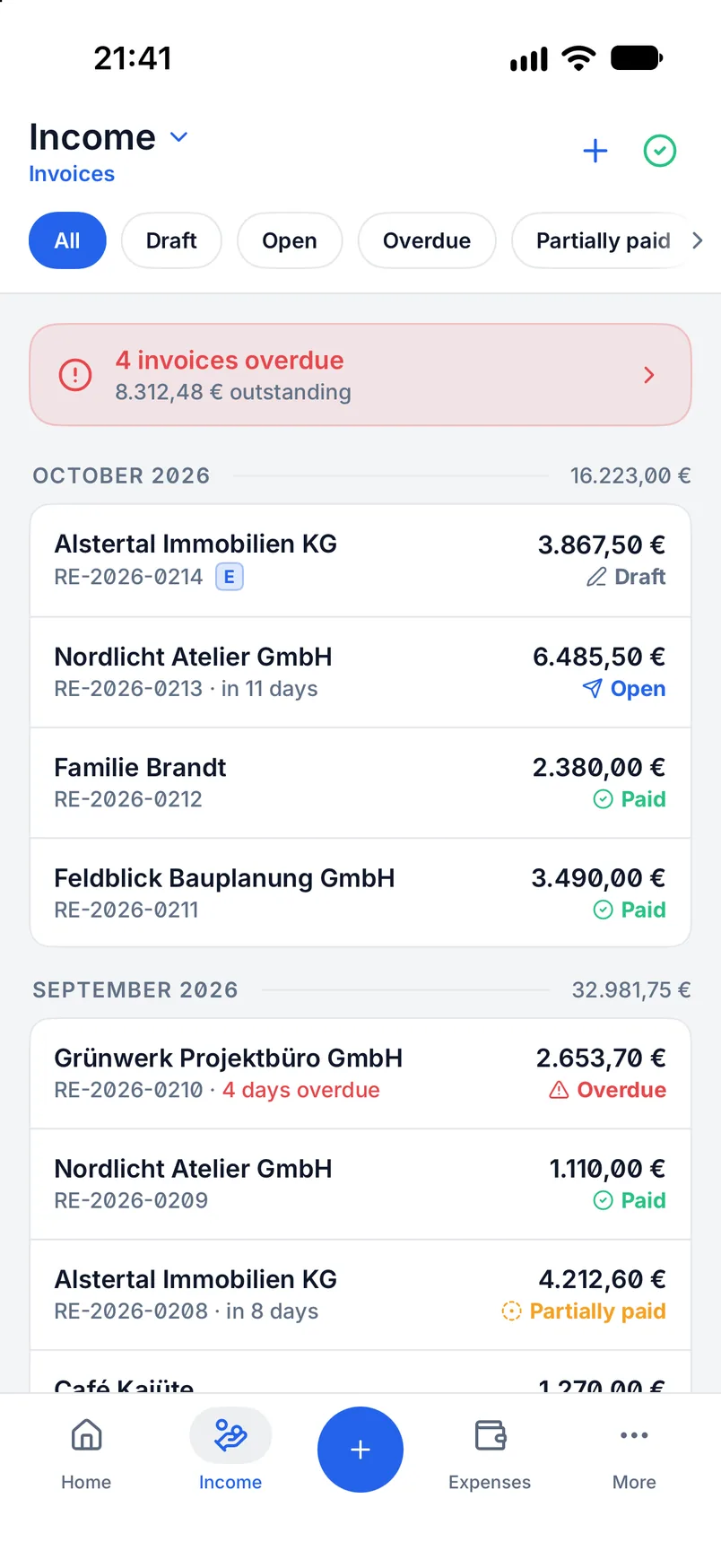
On the income side you record incoming payments right on the invoice, fully or in part, with date, amount, payment route and a note. Payment status and outstanding amount follow from those entries; that remaining balance is exactly what a later reminder works from.
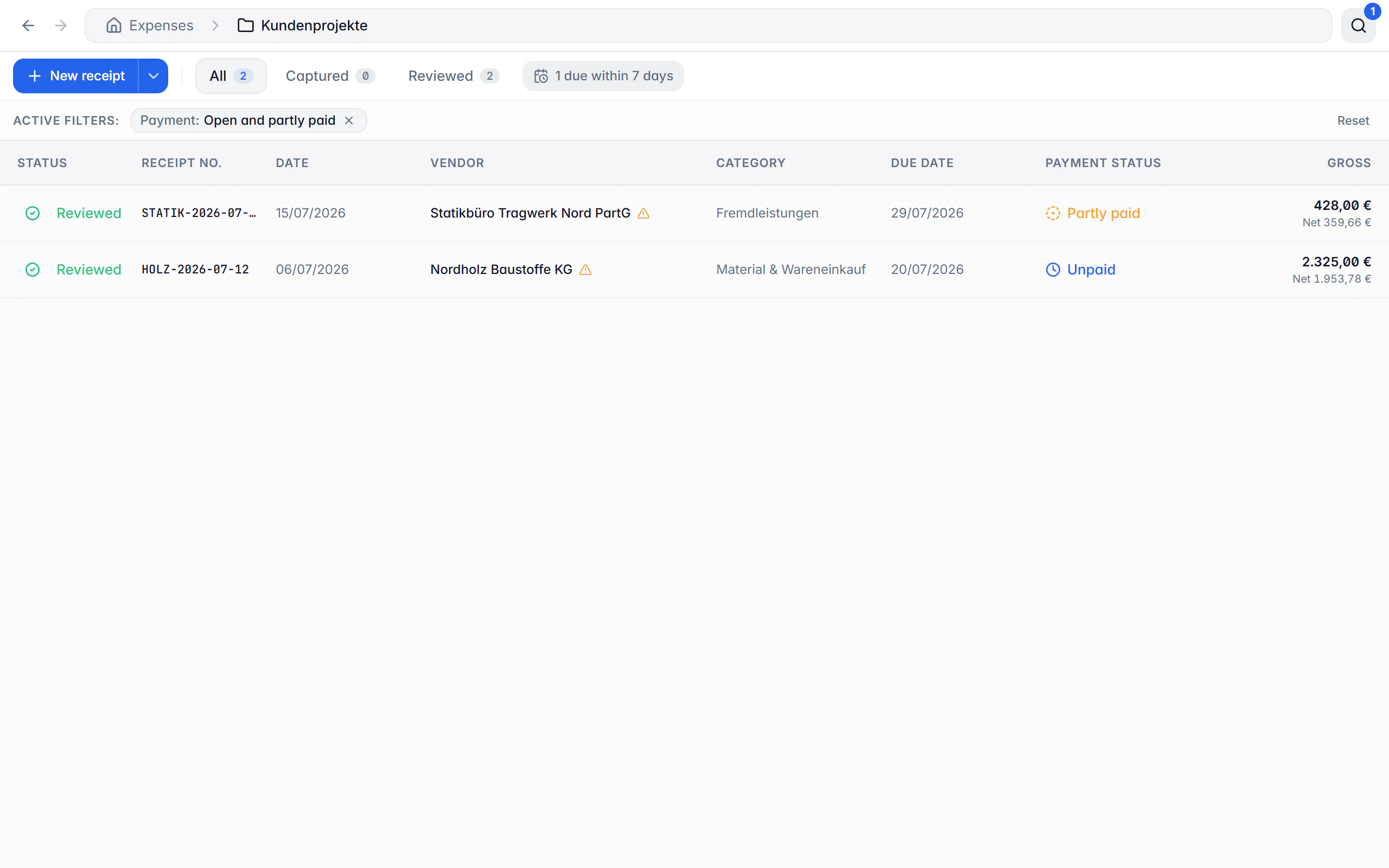
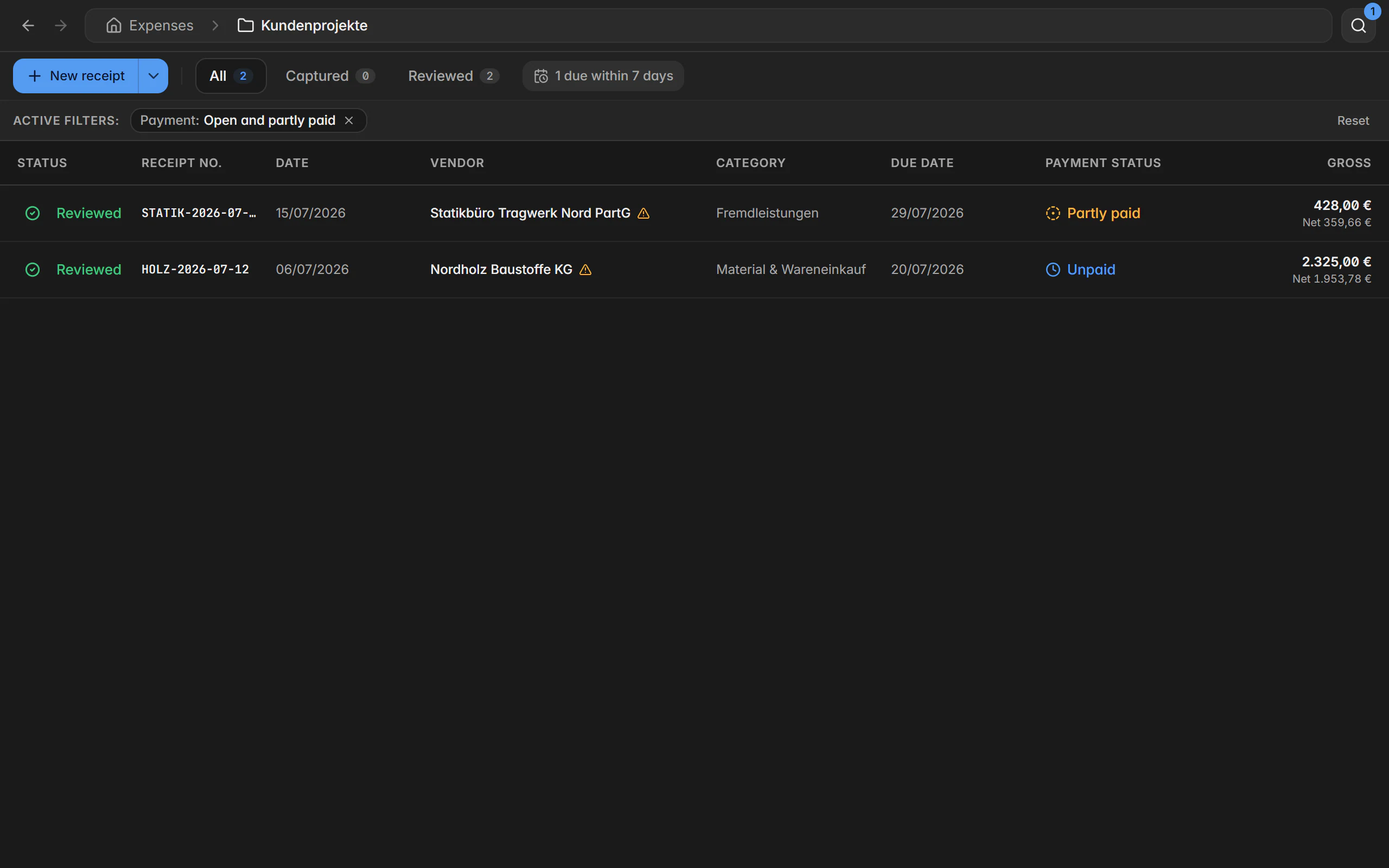
On the expense side, open items are unpaid or partly paid supplier invoices. Billance groups and sorts them by due date, shows remaining amounts and takes discount deadlines into account. Receipts without a liability do not appear there because they are already paid when they are created.
So that the payment details on your invoices are right, payment methods and accounts are part of the master data. You can store any number of accounts per method and simply pick one when creating a document. IBAN and BIC are checked for formal validity, so no bank details end up on an invoice that a bank cannot process later.
How to manage payments
Store a payment method
SEPA transfer, SEPA direct debit, cheque or online payment with the details each one needs. Once created, you can select it everywhere.
Set payment term and discount
Payment term, discount rate and discount deadline belong on the document and travel machine-readably with an e-invoice.
Record the incoming payment
Enter date, amount, payment route and a note. Billance recalculates the paid amount, remaining balance, payment status and discount from it.
Review open items
With the payment filter, the expense list shows exactly the receipts that are still open or only partly paid, sorted by due date.
Follow up
If a receivable stays open, a reminder grows out of it and takes over the actual remaining balance.
What payment handling does
Partial and over-payments
Several payments per record with their own date and amount; remaining balance and status are recalculated after every entry.
Discounts on both sides
Discount rate and deadline can be stored for outgoing invoices and maintained on supplier invoices; expiring deadlines are highlighted.
Due dates and overdue items
Open items are grouped by due date; overdue positions and discount deadlines about to expire stand out.
Four payment methods
SEPA transfer with IBAN and BIC, SEPA direct debit with creditor ID and mandate reference, cheque, and online payment with provider and an optional payment link.
Several accounts per method
Main and secondary account side by side, each with its own label so you can tell them apart; the document itself shows the payment details.
Validation on save
IBAN and BIC are checked for formal validity, and the mandatory fields of the chosen payment method are enforced.
Linked to the company profile
A payment account can be linked to the company profile’s bank account and then stays in sync automatically.
Defaults per recipient
A preferred payment method and account can be stored on the contact and in the document template.
Payments inside the e-invoice
The payment details go not only into the PDF text but also into the structured payment fields of the record.
On desktop and in the app
Payments are recorded on both platforms and affect status and remaining balance immediately.
In the desktop app
Open items are reached in the expenses area through the payment filter; the view groups payables by due date and leads from every row straight to the receipt. Payment methods have their own area with the methods on the left and their accounts on the right.
In the mobile app
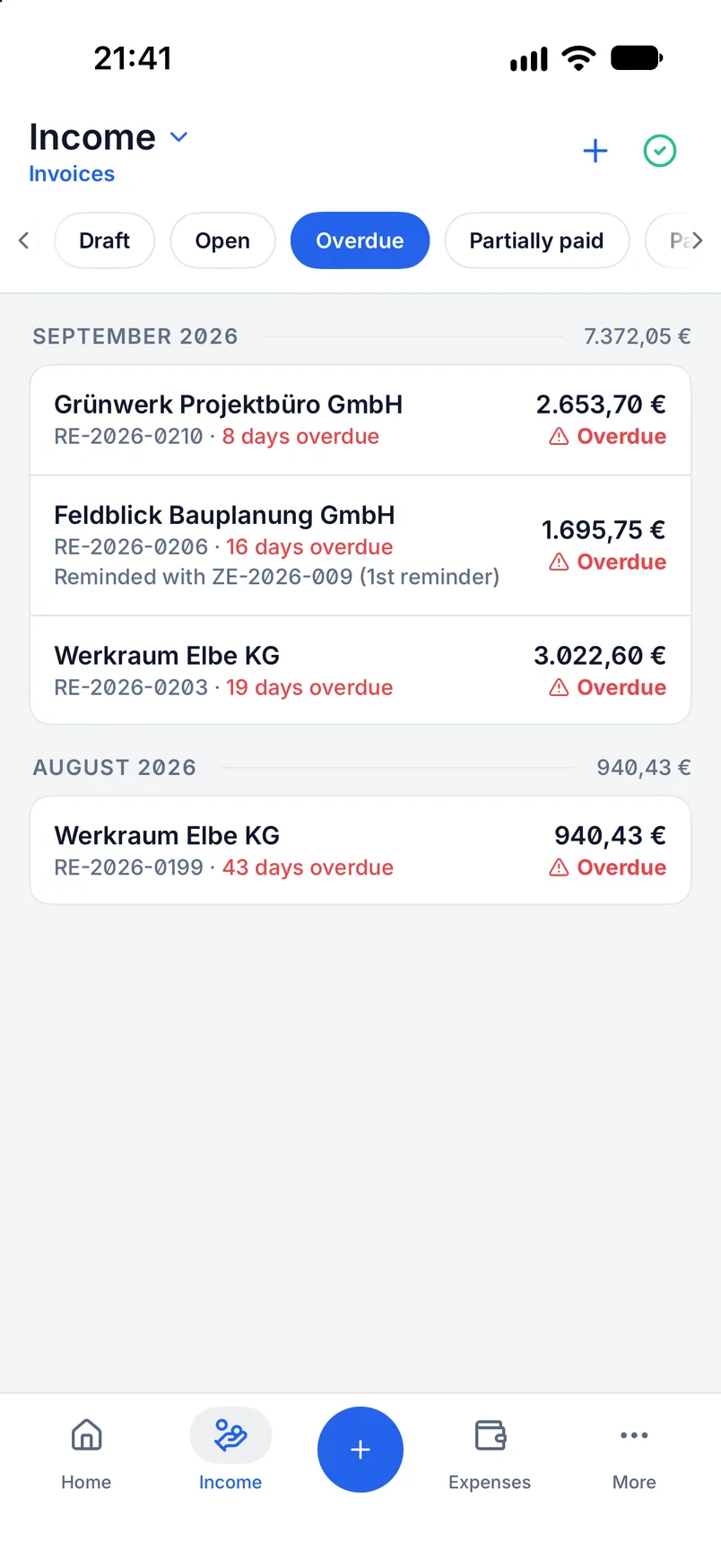
In the app you enable “open items only” in the filter of the expense list; tapping the matching dashboard figure opens the same filtered list. Payments are edited in the receipt’s payment section, and payment methods live in the settings.
Free or Premium
On the free plan
Payment methods and accounts for your invoices are maintained on the free plan too, and the payment status of an outgoing invoice stays usable.
With Billance Premium
Payables, receipt payments and discounts on the expense side are part of the Premium scope of the expense module.
After a downgrade, stored payment states and entries are kept.
Frequently asked questions about payments
Yes. You record as many payments as you like with their own date and amount; Billance derives the paid amount, remaining balance and payment status from them. That remaining balance is the basis of any later reminder.
Read on
Step by step in the help centre
The help articles walk through the same workflow as step-by-step instructions, including all fields, buttons and special cases.
Ready for e‑invoices?
Start with Billance and create your first e-invoices in just a few minutes.