Expenses
Capture expenses and receipts
Receipts, supplier invoices and subscription charges all arrive the same way in Billance: file in, data recognised, reviewed, categorised. Structured e-invoices are read locally; for everything else there is OCR and, after an explicit confirmation, AI recognition.
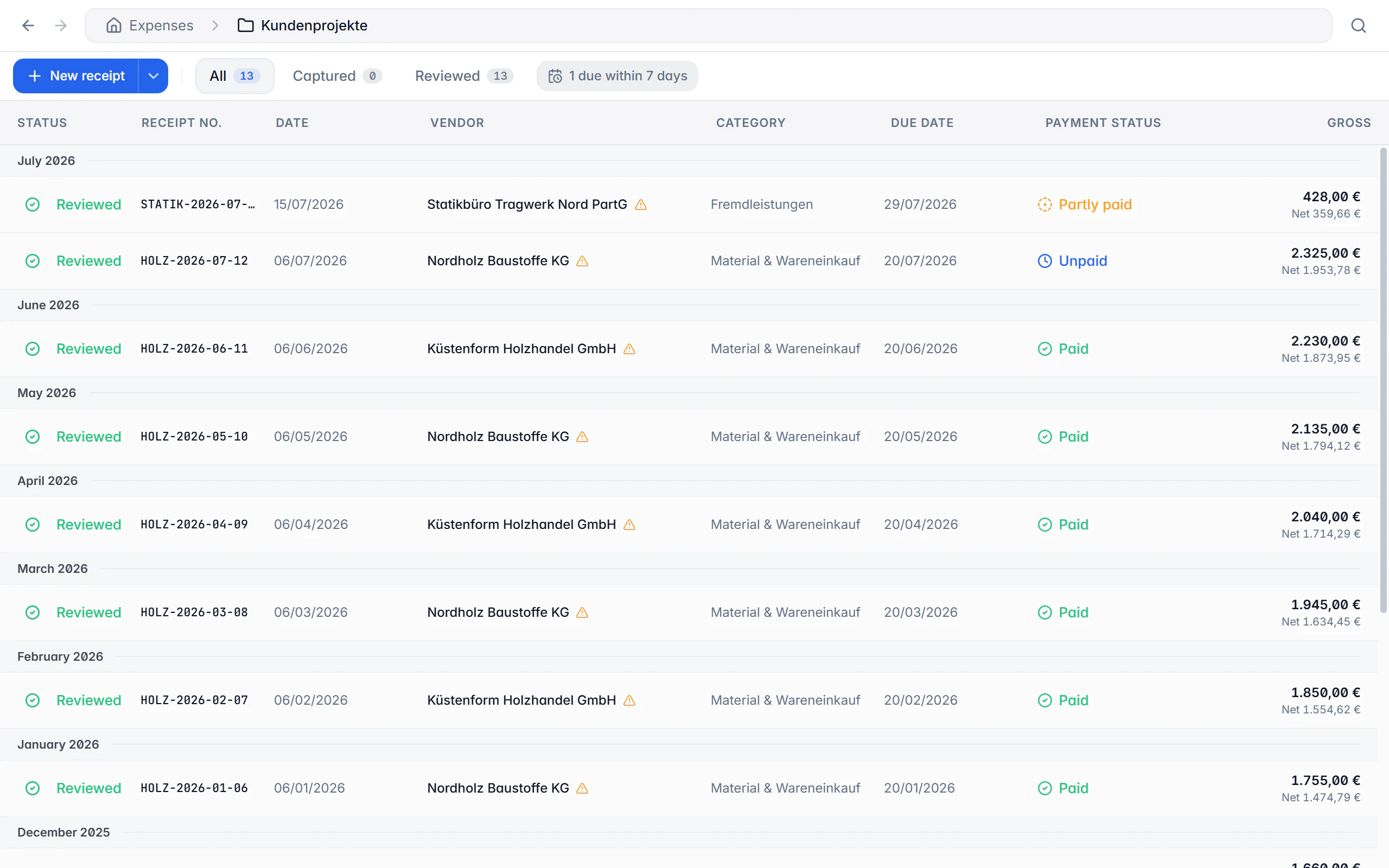
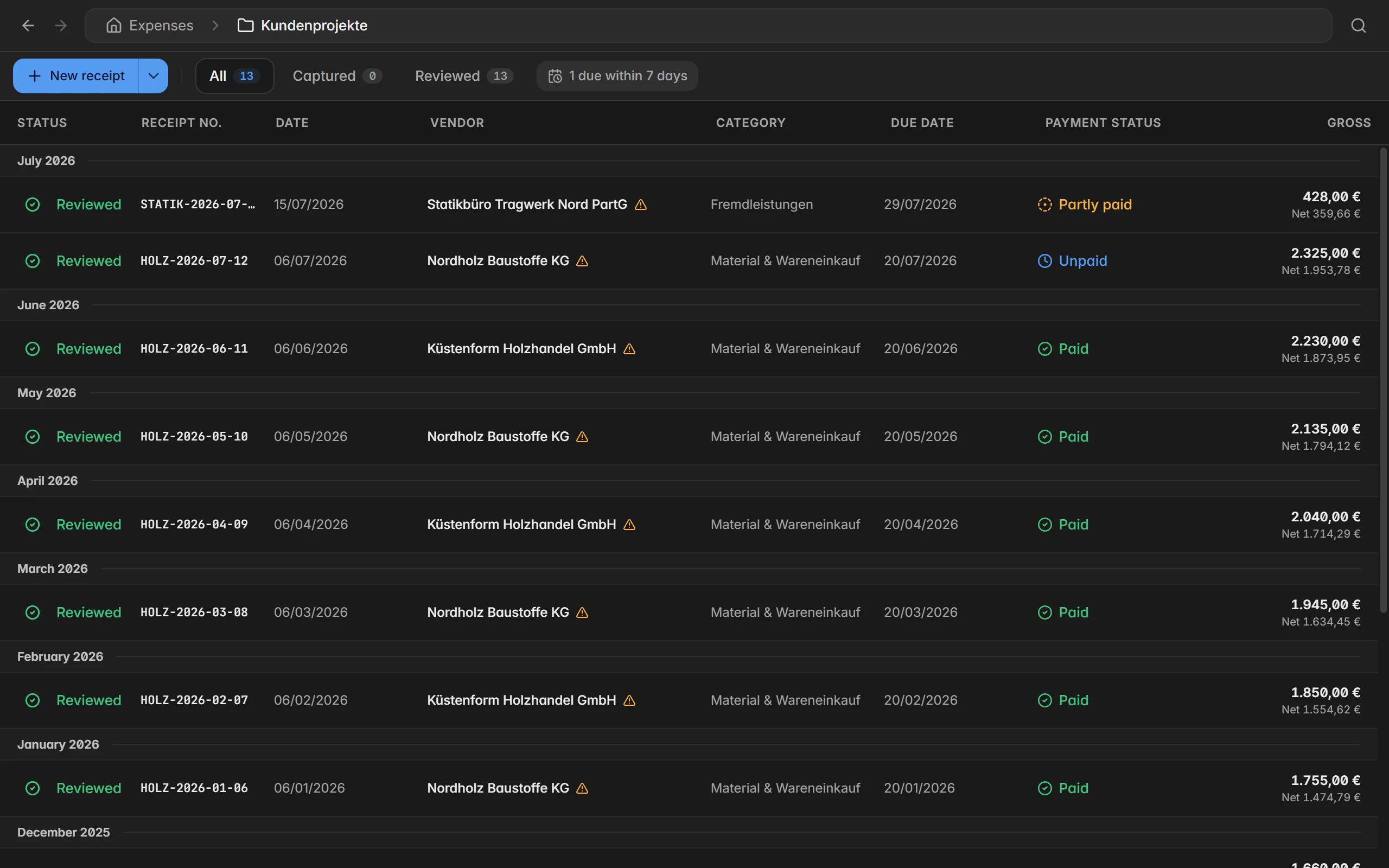
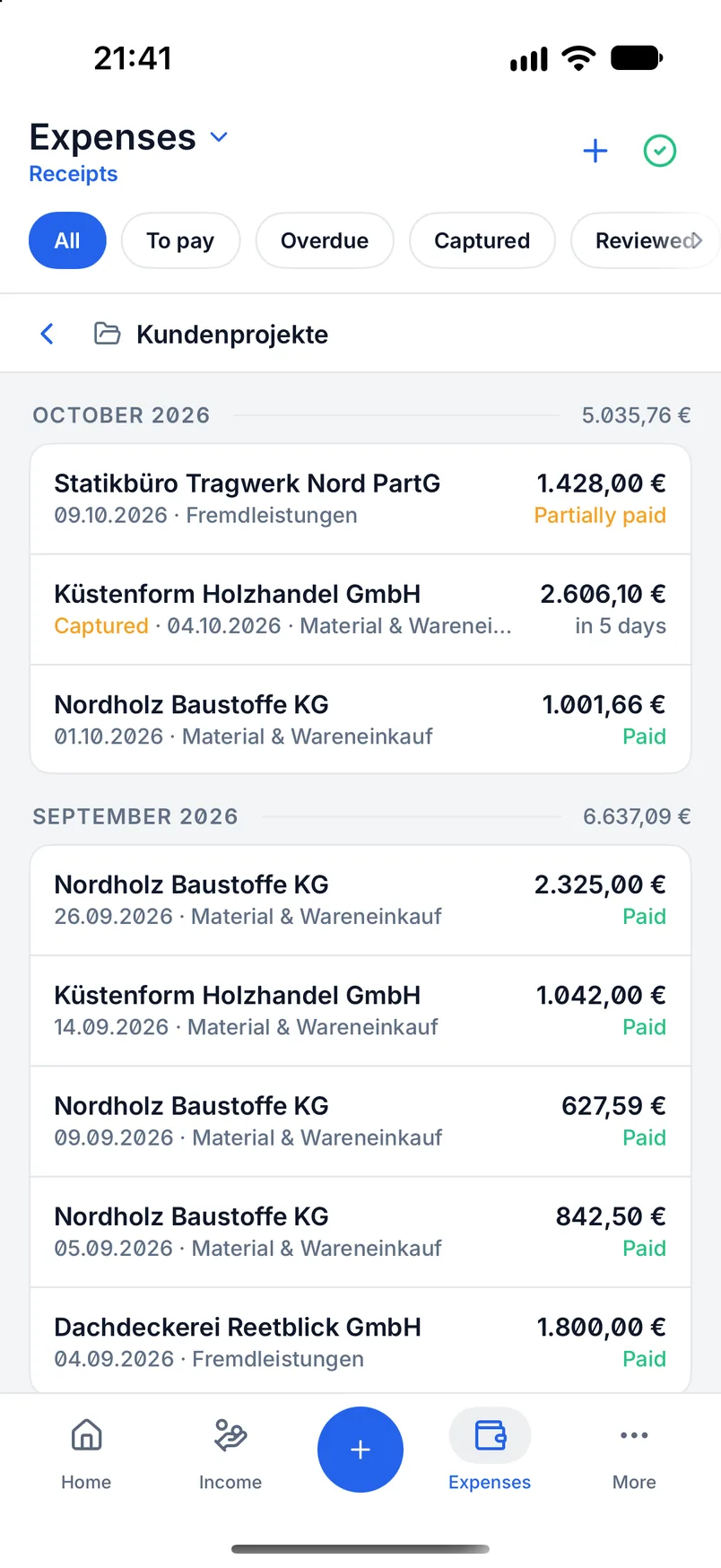
At a glance
- Intake
- Photo, scan, PDF, XML, batch
- Recognition
- E-invoice local, OCR local, AI on request
- Organisation
- Folders, archive, trash
- Plan
- Premium on desktop, single capture free in the app
How a receipt arrives in Billance
There are three routes into the expense area. A structured XRechnung XML or a ZUGFeRD/Factur-X PDF is read locally: supplier, invoice number, dates, currency, amounts, VAT breakdown and line items land straight in the receipt draft. A photo, a scan or an ordinary PDF goes through local text recognition. And for awkward layouts you can trigger AI recognition, but only after an explicit action and confirmation, because it transfers data and consumes quota.
Recognised values always remain a suggestion. Before saving you check supplier, receipt number, date, document type, category, currency and the net, tax and gross amounts; for supplier invoices, due date, discount, payments, service period and tax case come on top. The original stays attached.
After saving, a receipt has more ahead of it than just filing: you can mark it reviewed, finalize it, archive it, record payments, use it as a recurring expense template or rebill it to a customer.
From a stack of paper to a clean expense list
Bring receipts in
Pick a file, drop it in, scan it with the camera or create it by hand. A single file opens the editor, several files are prepared as drafts.
Let recognition run
Structured e-invoices and local OCR are evaluated automatically. AI recognition only starts when you explicitly confirm it.
Review and complete
Check amounts, tax case, category, due date and the deductible input tax share. A hint warns about possible duplicates.
Save and file
The receipt lands in the list and the original stays attached. Folders, archive and trash work as they do for outgoing documents.
Reuse it
Record payments, create a recurring expense, finalize it or rebill it to a customer. The receipt stays linked to the invoice.
What the expense area does
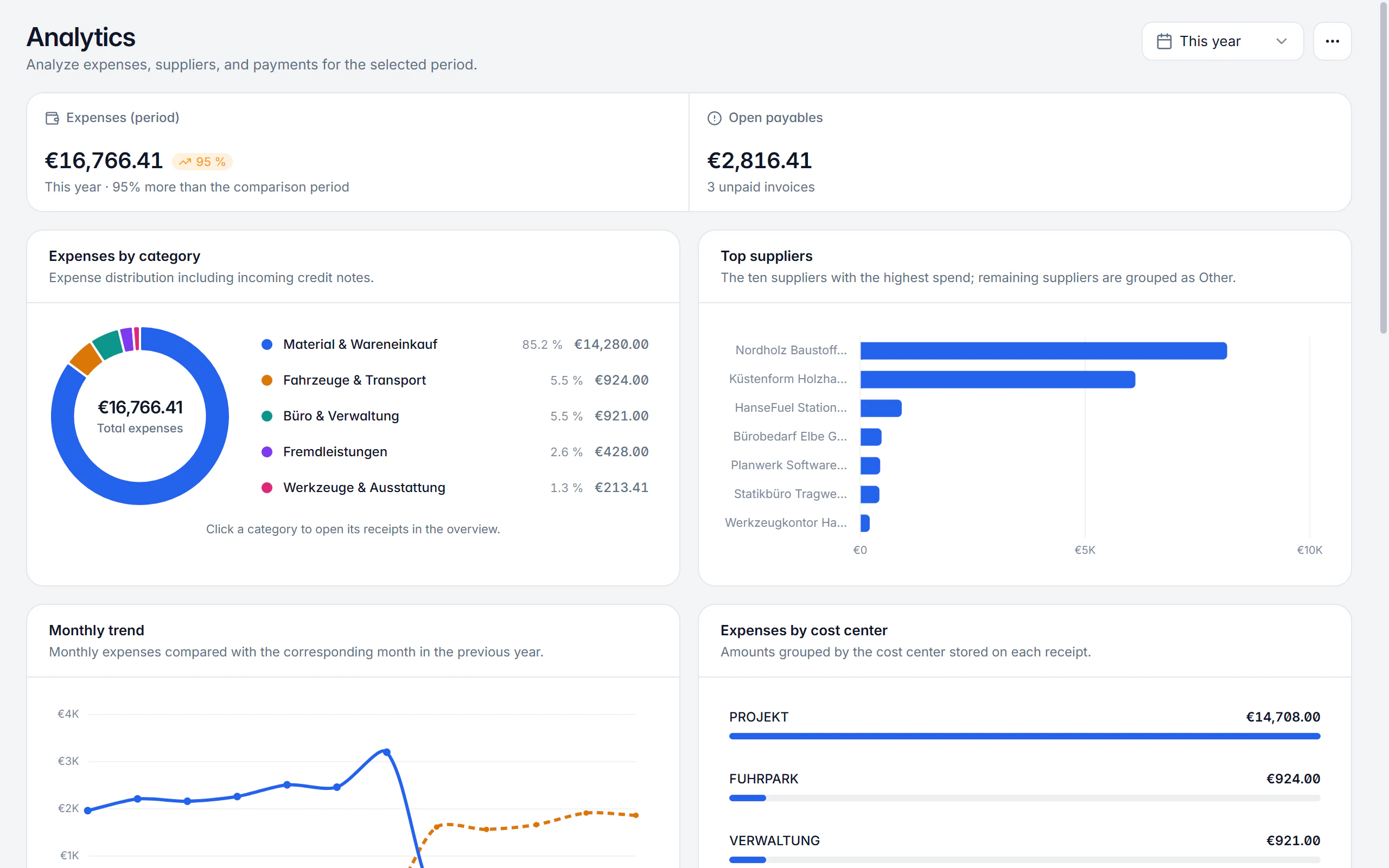
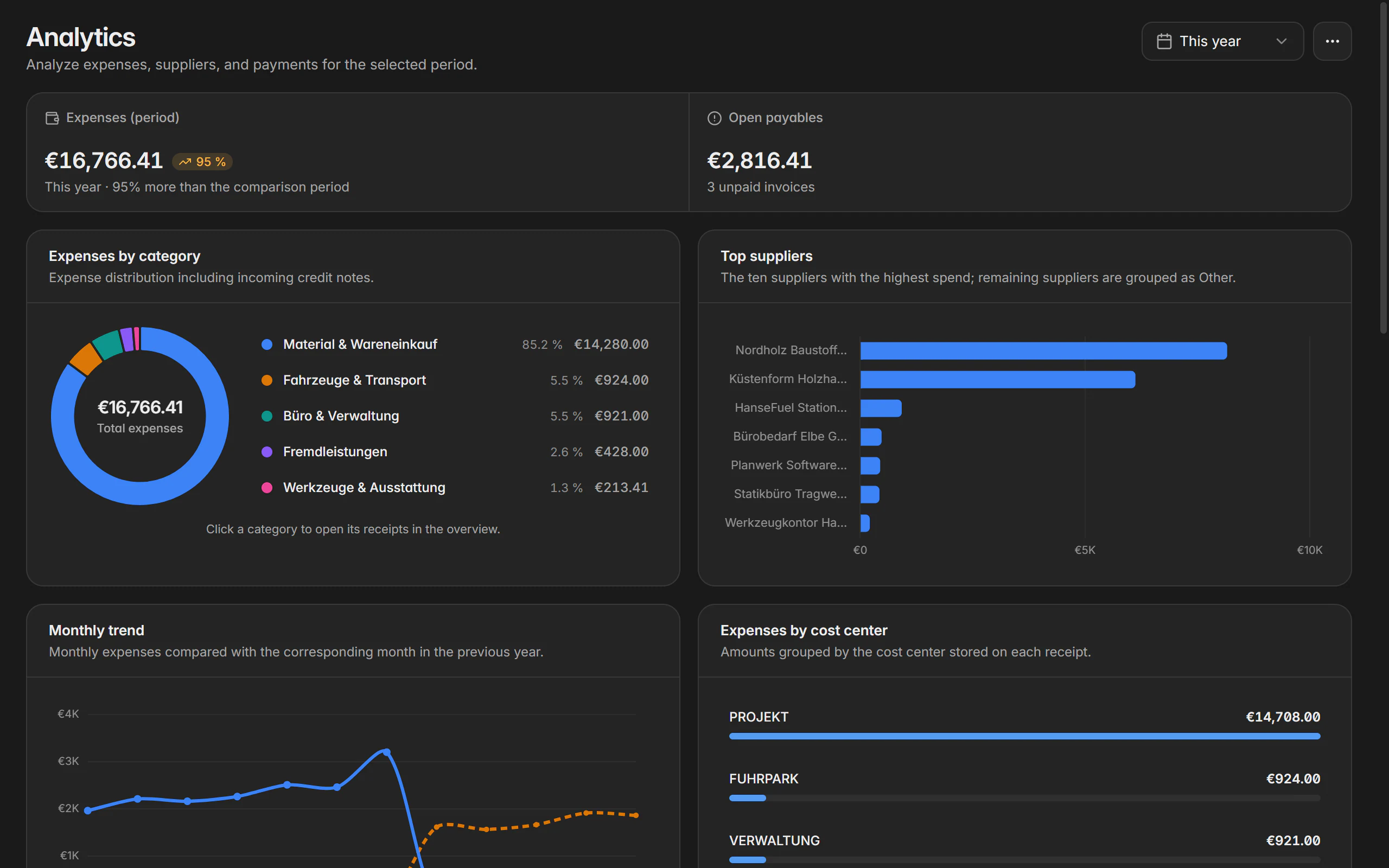
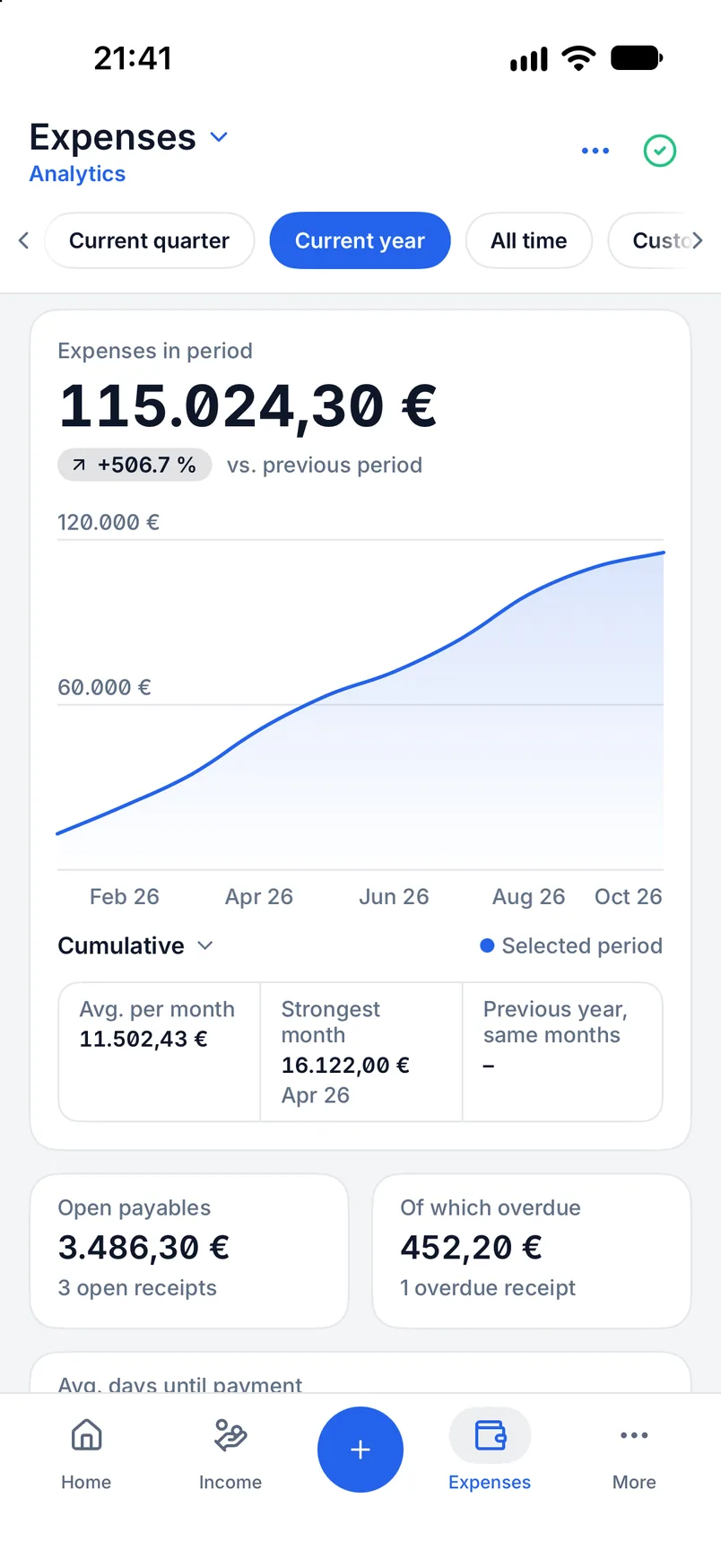
Read e-invoices locally
XRechnung XML and ZUGFeRD/Factur-X PDFs are evaluated without any upload; the original file stays stored unchanged.
Local text recognition
OCR reads photos, scans and ordinary PDFs on your device without consuming any quota.
AI only on request
AI recognition is used exclusively after an explicit confirmation and draws on the shared page quota.
Batch import with drafts
Several files become receipt drafts waiting at the top of the list. A draft counts in no report until it is saved.
Split multi-page PDFs
If one PDF holds several receipts, it can be split into individual drafts instead of forcing everything into one record.
Watched folder
Optionally Billance watches a local folder and turns supported files dropped there into drafts. Nothing is imported automatically.
Recurring expenses
Rent, subscriptions and insurance are set up as a series; expected receipts appear at the due dates without consuming quota.
Rebilling
A business expense becomes a line item on a customer invoice, with an optional percentage markup; receipt and invoice stay linked.
Finalization and integrity check
A reviewed receipt can be finalized; the change log documents the history, and the check compares original files with their stored SHA-256 hash.
Finalization, history and file integrity
Finalizing protects a reviewed receipt from normal editing. What happens afterwards stays visible in the change log, and the integrity check tells you whether the original file is still the one that was filed.
Check before finalizing
Review content, amounts, tax data, payments and the attachment. Afterwards the business data is locked.
Still usable
A finalized receipt can still be viewed, archived and used in supported follow-up workflows.
Change log
Creation, editing, status changes and finalization are documented; absolute local file paths are never transferred to other devices.
Integrity check
“Unchanged” means the file content still matches the stored hash. “Missing” or “changed” calls for a manual review. No files are sent to an AI service for this.
Protection from premature deletion
Finalized receipts and receipts inside their retention period cannot be deleted permanently; Billance names the earliest permitted date.
Finalization and the integrity check are Premium features that support your bookkeeping but do not replace tax advice.
On desktop and in the app
The expense area exists on both platforms; capturing uses the strengths of each device.
In the desktop app
Files can be selected or dropped in; one file opens the editor, several become drafts. A watched folder and splitting multi-page PDFs are part of it, and the menu next to New receipt imports every fully recognised draft in one go.
In the mobile app
In the app you tap the plus button and choose scan, photo, file, manual or batch import. Scan, photo and a single file open the mobile editor, a batch is prepared as a draft list. Manual single capture stays usable without Premium.
Free or Premium
On the free plan
In the desktop app the expense module is Premium: released views can be opened, but no receipts created or changed. In the mobile app, manual single capture stays usable on the free plan.
With Billance Premium
Premium unlocks receipt recognition, batch import, recurring expenses, rebilling, payments, finalization, the integrity check and the expense report.
After a downgrade all captured receipts, payments and recurring expenses are kept.
Frequently asked questions about expenses
Not automatically. E-invoices and text recognition are evaluated locally on your device. AI recognition does transfer data, but it only starts after an explicit action and confirmation. Original files can optionally be synchronised to your own devices through the encrypted file sync.
Read on
Step by step in the help centre
The help articles walk through the same workflow as step-by-step instructions, including all fields, buttons and special cases.
Ready for e‑invoices?
Start with Billance and create your first e-invoices in just a few minutes.