Converting
Convert PDF invoices into e-invoices
An existing invoice document is not retyped but read. Billance knows two routes for that: AI recognition for changing layouts, and local processing with a converter template for documents that always look the same.
At a glance
- Modes
- Billance AI and local with a template
- Files
- PDF, images and office formats
- Result
- A prefilled invoice draft
- Plan
- Premium
Two routes from a PDF into a data record
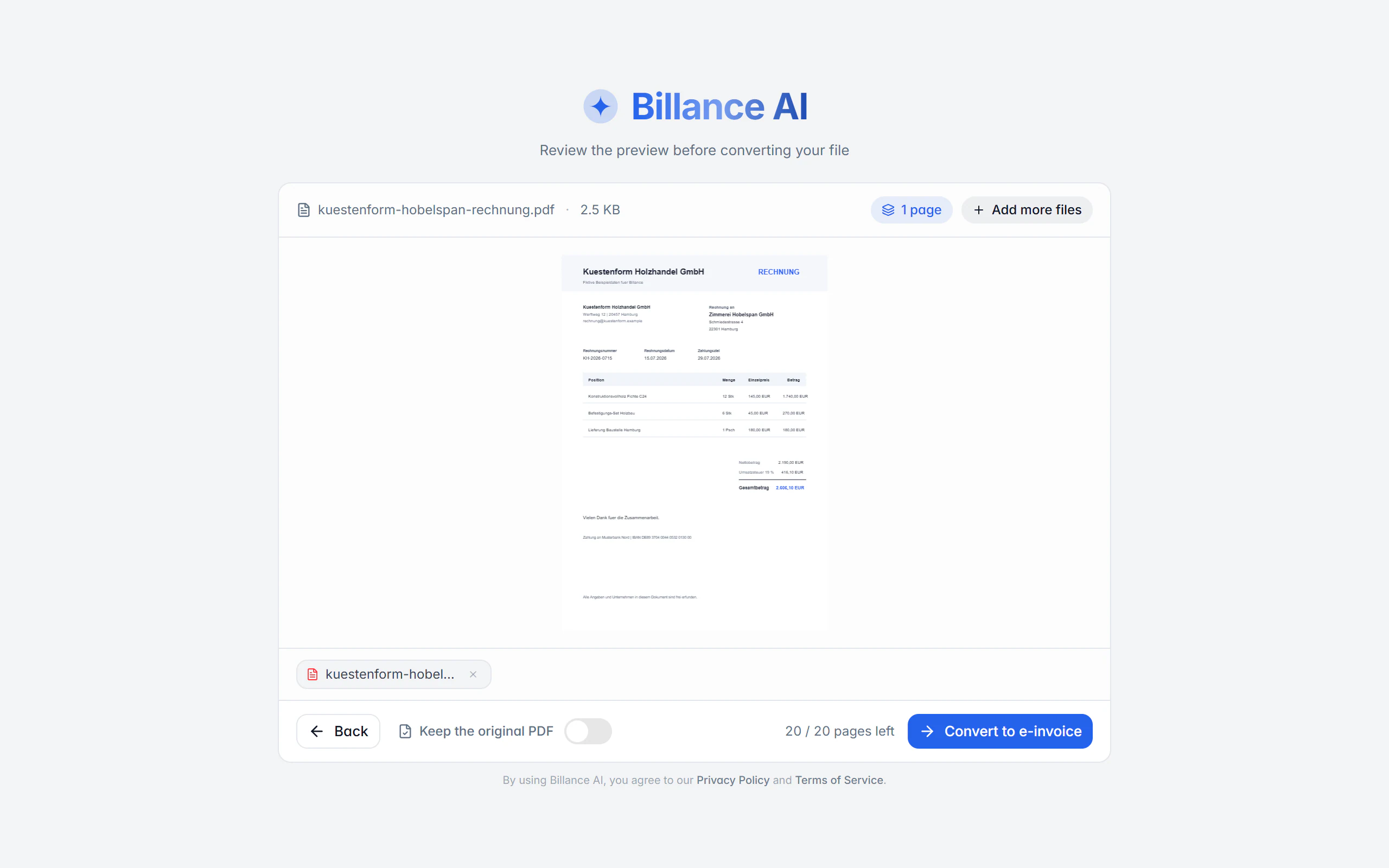
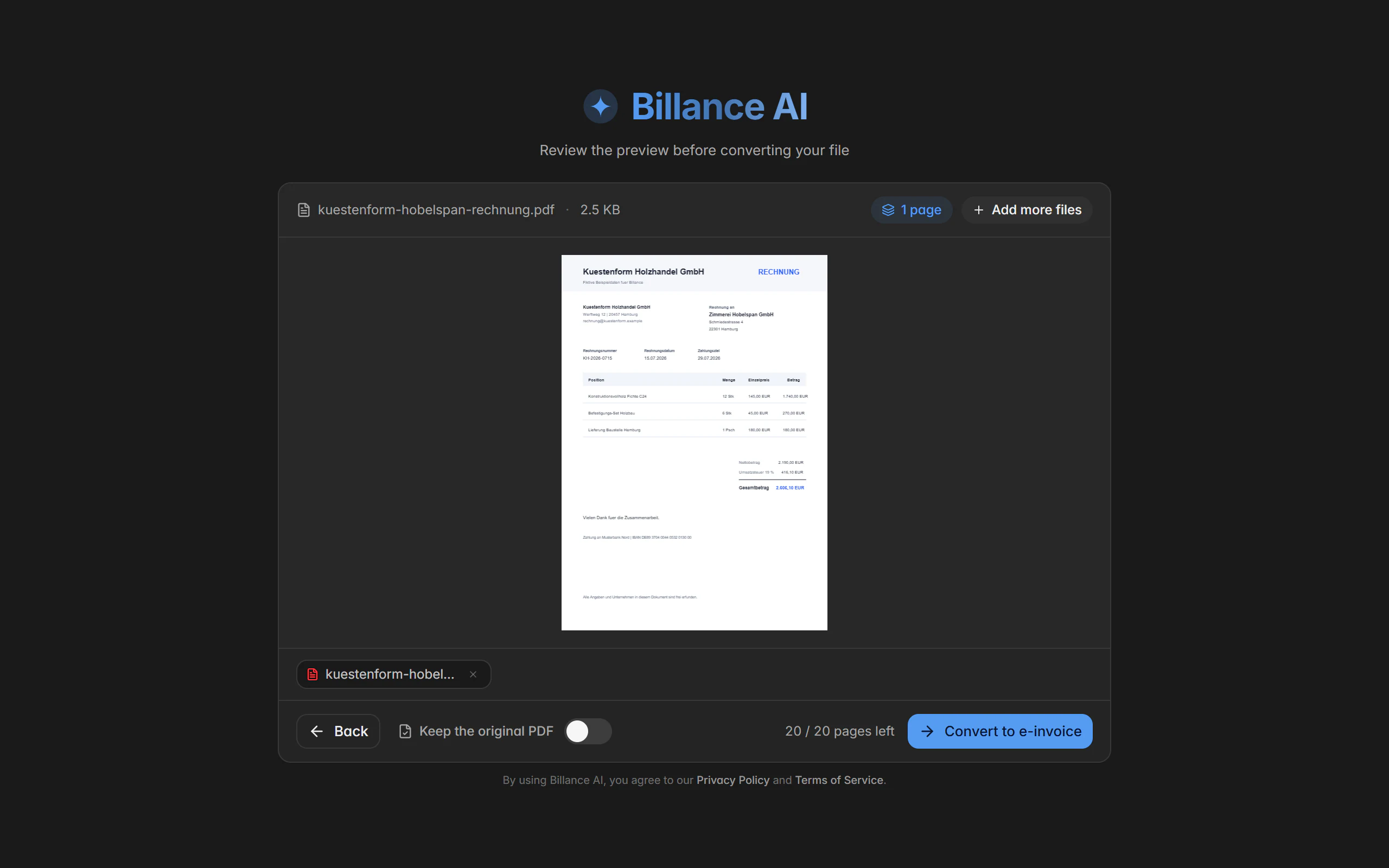
Billance AI suits changing layouts and documents without a prepared template. Before you start you see the selection, the page usage and the remaining quota of the current billing period; the analysis runs online, and only afterwards do you carry reviewed values into a new invoice draft.
Local processing takes the other route. In a converter template you describe once where a recurring layout keeps its number, date, sender, recipient, payment details, line items and totals. From then on Billance reads that layout without any AI upload — ideal for the supplier whose invoice looks the same every month.
In both cases you also decide what the new invoice should look like. With “keep the original PDF”, the invoice uses the existing PDF and embeds the e-invoice data in it; without that option Billance produces a new PDF in your design and only reads the original.
Already have invoice XML? Read its contents in the viewer or check the exported file in the browser validator. Both tools process the invoice locally in your browser without installation.
Format reference: FeRD – ZUGFeRD / Factur-X
Converting a document
Choose the mode
Billance AI for changing layouts, local processing with a converter template for recurring documents.
Prepare the files
Select or drop files, prepare several together and exclude individual pages up front for PDF and office files.
Decide on the invoice PDF
“Keep the original PDF” decides whether the invoice uses the existing PDF or Billance produces a new one in your design.
Let it read
The AI analysis shows page usage and quota beforehand; local processing uses the marked areas of the template.
Review the result
The prefilled invoice draft opens with the carried-over values highlighted and a summary of what was recognised.
What the converter does
AI for changing layouts
Billance AI copes with documents that have no template; selection, page usage and remaining quota are known before you start.
Local processing without upload
With a converter template the document stays on your device. For scanned templates additional OCR resources may be downloaded once — with a notice beforehand.
Many input formats
In the desktop app PDF, PNG, JPG/JPEG, WEBP, AVIF, DOCX, ODT, XLSX and XLSM; images and office files are converted into a suitable PDF first.
Several files and page selection
One run can prepare several documents, and for PDF and office files pages can be excluded up front.
Keep the original PDF
The finished invoice can use the original PDF and embed the structured data in it — design and pure print options then fall away.
Matches are mapped
The summary shows which recipients, payment accounts and products match existing records.
Manual mapping as a fallback
If barely anything was recognised, the converter stays on the result page and offers manual field mapping.
Payment details are never taken blindly
Recognised bank details and payment information are not carried into the invoice unchecked.
Converter templates for recurring layouts
A converter template describes where a particular invoice format keeps each piece of information. The more precisely the markings match the actual layout, the more reliably local processing reads it.
Mark it on a reference document
Choose the field type and mark the matching area in the document — number, date, sender, recipient, payment details, line items and totals.
Draw an area or select text
In the desktop app you switch between both modes; the preview supports page changes, zoom and swapping the reference document.
Several clear templates
Separate templates for different layouts are more reliable than one very general template meant to cover everything.
Adjust instead of guessing again
If text blocks, tables or total areas shift, you adjust the template or create a new one.
Templates stay saved after a downgrade; local conversion itself only runs again with active Premium.
PDF to XRechnung or ZUGFeRD: what needs completing?
Renaming a PDF does not create invoice XML. Conversion maps recognised values to structured fields; you complete missing data and review the draft before exporting.
A monthly maintenance invoice as PDF
For a recurring layout, mark the number, date and items in a template. With €100.00 net and €19.00 VAT, check that €119.00 gross was also captured. An advance payment additionally changes the amount due.
A scan with several VAT rates
Blurred digits, page breaks or separate tax groups can be misread. Compare each item and tax group with the original; a matching final total alone is not enough.
A missing buyer reference
A buyer reference (BT-10) absent from the PDF cannot be extracted. Ask the recipient for the required value before creating an XRechnung.
XRechnung is structured XML; ZUGFeRD combines PDF and invoice XML. If your original already contains readable invoice XML, you can view or validate it directly without recognising the text again.
On desktop and in the app
Both modes exist on both platforms; the supported file formats differ.
In the desktop app
In the desktop app you can use PDF, PNG, JPG/JPEG, WEBP, AVIF, DOCX, ODT, XLSX and XLSM and drop files in. For scanned or image-based documents, local processing downloads additional OCR resources once if needed.
In the mobile app
In the app the AI mode accepts PDF, JPG/JPEG, PNG and TIFF, plus a camera scan. The local mode supports PDF and structured XML files; local text recognition uses the system capabilities and needs no separate download. Office, WEBP and AVIF files are not offered there.
Free or Premium
On the free plan
Both converter modes are Premium features and are not part of the free plan. Converter templates you already created stay saved.
With Billance Premium
Premium unlocks Billance AI with the page quota of the current billing period as well as local processing with converter templates.
Frequently asked questions about converting
In AI mode yes — the analysis runs online, and you see page usage and remaining quota before you start. Local processing with a converter template works on your device without any AI upload.
Read on
Step by step in the help centre
The help articles walk through the same workflow as an instruction – every field, every button, every special case.
Ready for e‑invoices?
Start with Billance and create your first e-invoices in just a few minutes.